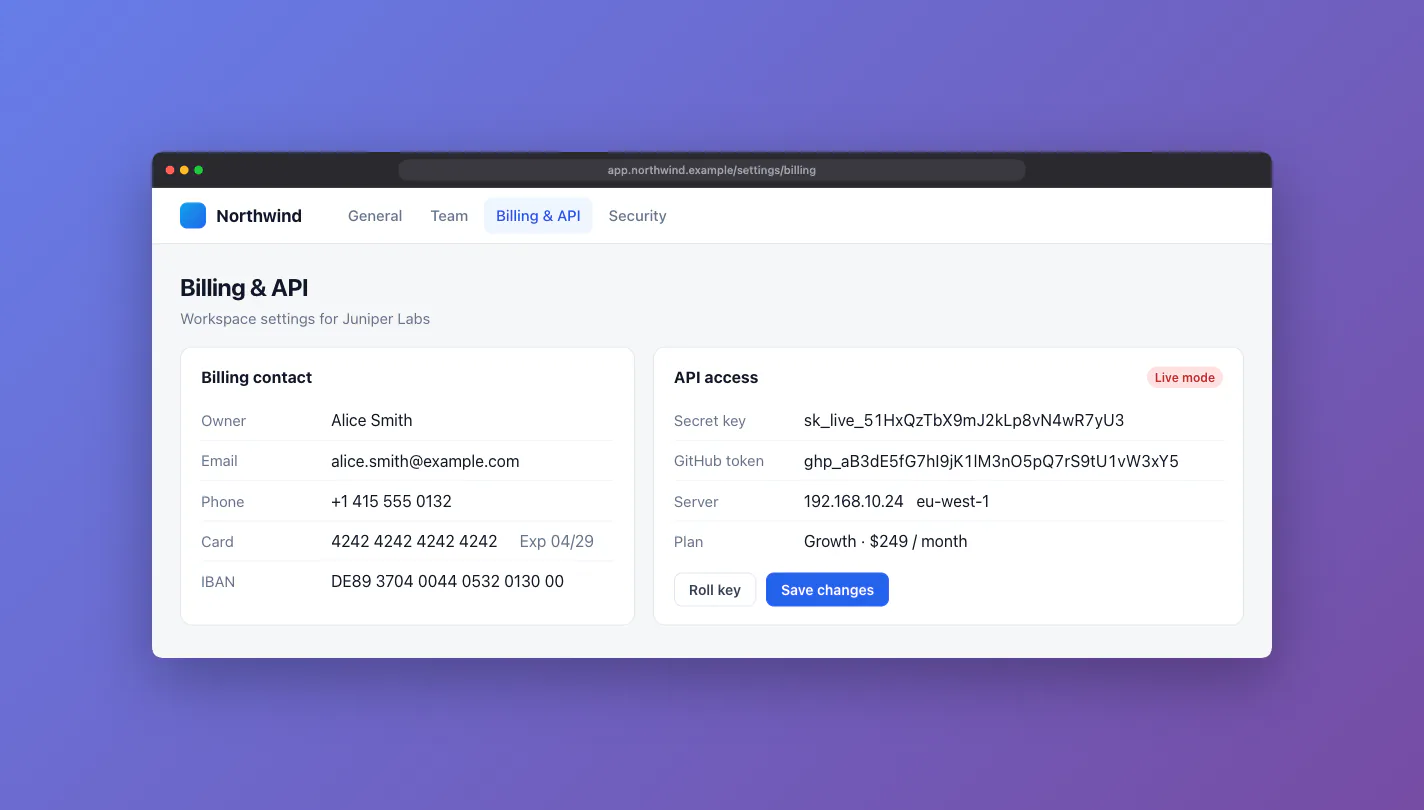
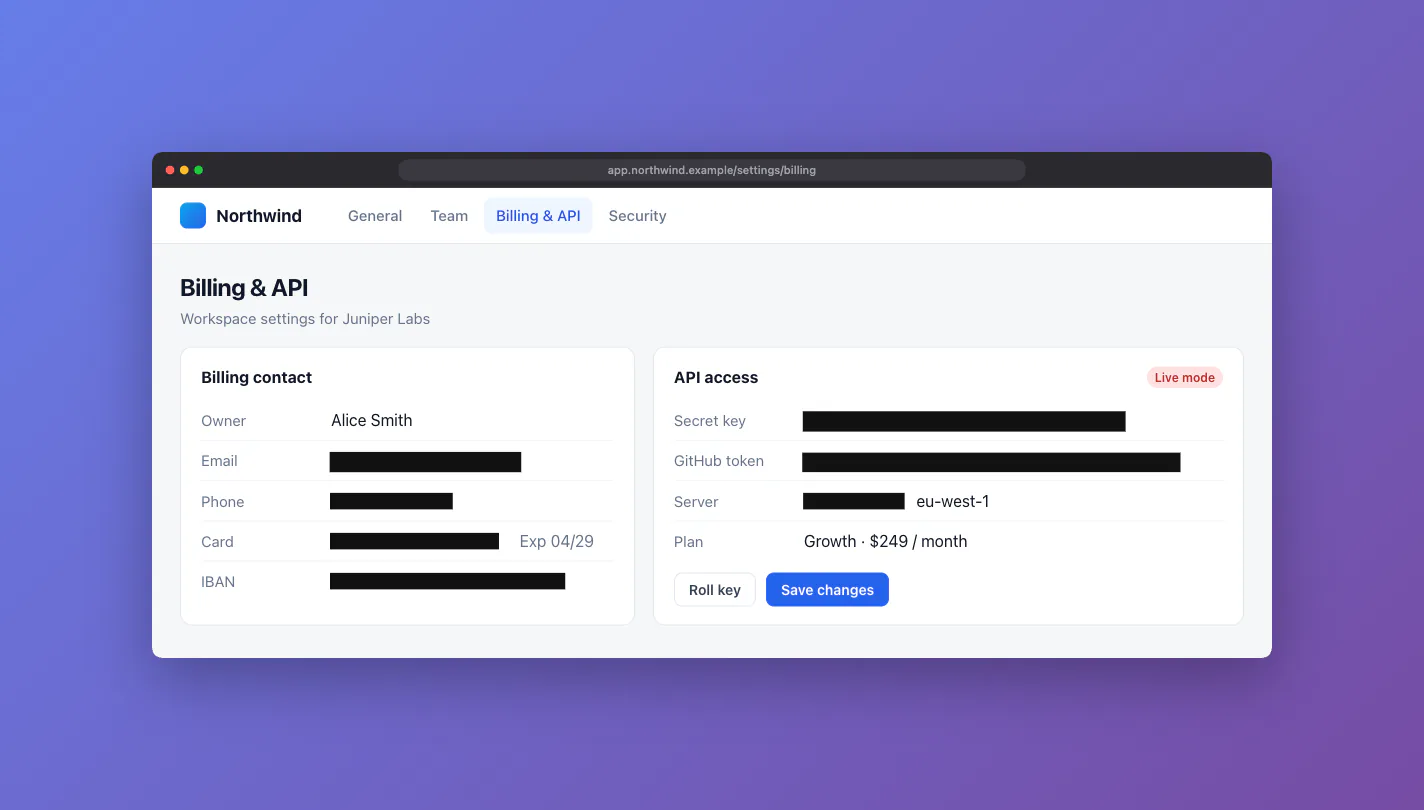
Screenshots leak things. A support reply shows a customer's email address. A bug report shows an API key in a settings page. In Screencap 1.3, Auto-redact finds this kind of text and covers it before you copy or share the image. It runs on your device.
What it detects
| Type | Examples | How it checks |
|---|---|---|
| Keys and tokens | Stripe, OpenAI, GitHub, AWS, Slack, Google, GitLab and npm keys, JWTs, private key headers | Known prefixes, plus long random-looking strings next to words like "token", "secret" or "password" |
| Card numbers | 13 to 19 digits, with or without spaces | Luhn checksum |
| IBANs | DE89 3704 0044 0532 0130 00 | mod-97 checksum |
| Emails | name@example.com |
Pattern |
| IP addresses | IPv4, IPv6 and MAC addresses | Pattern |
| Phone numbers | +1 415 555 0132 | International prefix, or 10 or more grouped digits |
| SSNs | 123-45-6789 | US format rules |
| URLs with secrets | user:password@host, ?token=… | Credentials or token parameters |
OCR sometimes reads 0 as O and 1 as l. The number detectors correct for this, so a card number still matches when OCR reads one digit as a letter. The checksums keep dates, prices, order numbers and version numbers from matching.
How it works
- Screencap reads the image with the same local OCR engine it uses for text extraction. It gets each word and its position.
- The detectors check each line of text. They are plain pattern rules and checksums in the extension. There is no server and no AI model.
- Screencap maps each match to the exact part of the word boxes, so it covers the value and not the label next to it.
The image and the text never leave your device.
Review before you apply
In the full editor, Auto-redact opens a review panel. It groups the findings by type and outlines each one on the image. Clear the check box for anything you want to keep. Then choose a style, Box, Pixelate or Blur, and click Redact. Screencap remembers the style.
The redactions are normal annotations. You can move them, delete them or undo them, and you can add your own boxes with the pixelate or blur tools.
In the in-page editor (Select Area), the Auto-redact button covers everything it finds in the selection with solid boxes, without a review step. Check the result. To keep one value, press V, click its box and press Delete. Ctrl+Z removes all of them.
Searchable PDFs leave redacted text out
When you export a PDF, Screencap adds an invisible OCR text layer, so you can search and copy text in the PDF. Words under a redaction box, pixelate or blur are not added to that layer. A covered key can't be found again by search or by copy and paste.
PNG, JPEG and WebP exports are flattened, so the covered pixels are gone from the file.
Limits
- Names and street addresses aren't detected yet. They don't follow a pattern that rules can check reliably. Cover them by hand with the pixelate or blur tool.
- OCR is English only. Text in other scripts, very small text and text on busy backgrounds can be missed.
- It's a helper, not a guarantee. Always look at the result before you share it.